How to Setup Minecraft Jenny Mod Uncensored Version
Many players searching for Minecraft Jenny Mod uncensored are actually looking for a way to disable blur effects and enable all available visual features within the mod’s configuration settings.
The good news is that most versions of Jenny Mod include customizable settings that can be adjusted through configuration files. By editing the correct options, you can personalize the mod experience according to your preferences.
In this guide, you’ll learn how to locate the config files, change settings, and activate available visual options safely.
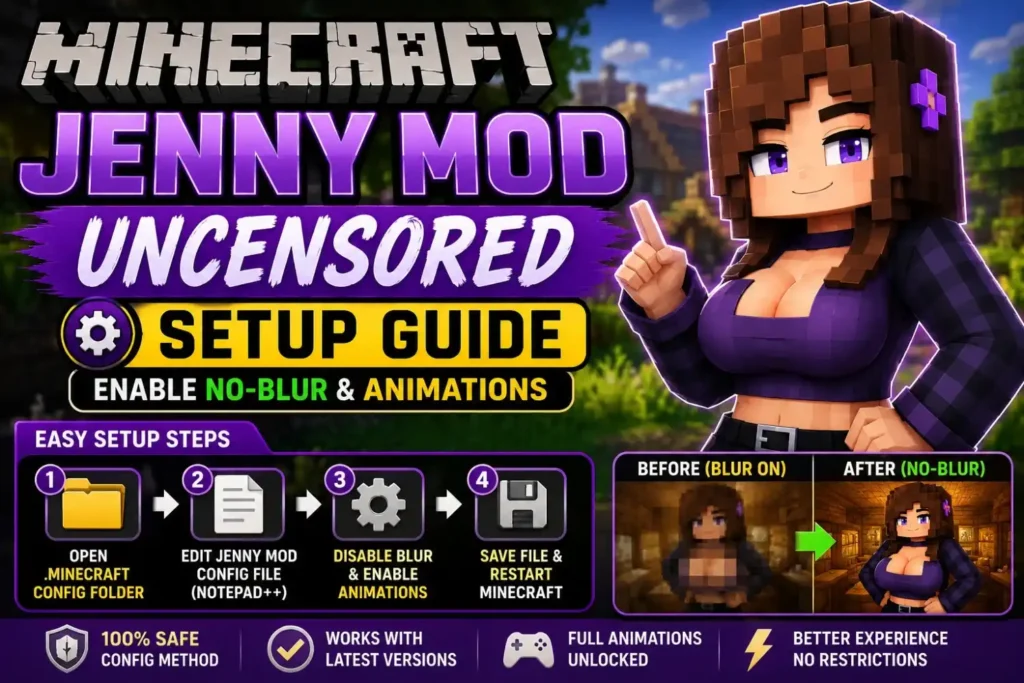
What Does Minecraft Jenny Mod Uncensored Mean?
The term Minecraft Jenny Mod uncensored is commonly used by players who want:
- Reduced blur effects
- Additional animations enabled
- Full visual configuration access
- Custom gameplay settings
- Better control over mod features
The exact options available depend on the version of Jenny Mod you are using.
Before You Start
Make sure you have:
- Minecraft Java Edition installed
- The correct Forge version
- Jenny Mod installed properly
- A backup of your Minecraft files
Creating a backup is recommended before editing any configuration files.
Step 1: Locate the Minecraft Config Folder
First, close Minecraft completely.
Navigate to your Minecraft installation folder:
Windows
%appdata%\.minecraftOpen the config folder.
Inside, look for configuration files associated with Jenny Mod.
Step 2: Open the Configuration File
Most Jenny Mod versions store settings in:
configor
modsdirectories.
Open the configuration file using:
- Notepad
- Notepad++
- VS Code
Avoid using software that may change the file format.
Step 3: Find Blur or Visual Settings
Look for entries similar to:
blur=trueor
enableBlur=trueDepending on the version, setting names may vary.
To disable blur effects, change the value to:
blur=falseSave the file after making changes.
Step 4: Enable Available Animation Settings
Some versions provide additional animation controls.
You may find options such as:
animations=trueor
enableAnimations=trueMake sure these settings are enabled if you want all supported animations active.
Step 5: Save and Restart Minecraft
After updating the configuration file:
- Save changes.
- Close the editor.
- Launch Minecraft.
- Load your world.
The updated settings should now be applied.
Troubleshooting Common Issues
Settings Are Not Saving
Check whether the configuration file is set to “Read Only.”
Minecraft Crashes After Editing
Restore your backup and verify that the file format remains unchanged.
Changes Do Not Appear
Some versions regenerate configuration files automatically.
Try:
- Deleting the config file
- Restarting Minecraft
- Reapplying the settings
Use the No-Blur Configuration Guide
If your primary goal is removing blur effects, our dedicated guide provides additional details and troubleshooting steps.
👉 Visit Jenny Mod No Blur for advanced configuration instructions.
Keep Your Jenny Mod Updated
Using the latest compatible version can help prevent:
- Missing settings
- Configuration errors
- Animation issues
- Compatibility problems
For downloads, setup tutorials, and version updates, visit our Jenny Mod homepage.
Frequently Asked Questions
Is Minecraft Jenny Mod uncensored a separate version?
Usually, players use the term to describe specific configuration settings rather than a completely different mod version.
Can I disable blur effects manually?
Yes. Many versions allow blur settings to be adjusted through configuration files.
Where are Jenny Mod settings stored?
Most settings are stored in the Minecraft config directory.
Will editing config files damage my game?
Not if changes are made correctly. Creating a backup beforehand is recommended.
Why can’t I find the blur option?
Different Jenny Mod versions use different configuration structures. Some versions may not include the setting.
Conclusion
Setting up the Minecraft Jenny Mod uncensored configuration usually involves modifying the mod’s configuration files and adjusting available visual settings. By locating the correct config file, disabling blur effects, and enabling supported animations, you can customize the experience to better match your preferences.
Always back up your files before making changes, use compatible mod versions, and follow trusted setup guides to avoid configuration issues.